Image Resizer
Change the size of any image in seconds. Set exact pixels, scale by percent, or pick a preset for Instagram, YouTube and more.
Loading tool…
- 100% free
- Unlimited use
- No sign-up
- No payment
- Files stay on your device
- No watermark
How to Resize an Image
- Add your images. Drop one or many photos into the box.
- Choose a new size. Type a width or height in pixels, scale by percent, or pick a preset like "Instagram post".
- Click "Resize Images". Every file gets resized in seconds.
- Download. Save each image, or get them all in one ZIP.
More Resize Tools
Resize by Pixels or by Percent
By pixels gives you exact control. Type a width, and the height adjusts automatically when Keep proportions is on. This is what you need for forms, websites and social media.
By percent scales the whole image. 50% makes it half as wide and half as tall. That's handy for quickly shrinking a batch of large photos.
What If the Shape Doesn't Match?
Say your photo is a wide 4:3 shot, but you need a 1:1 square. Turn off Keep proportions and enter both sizes. Then choose what to do with the extra space:
| Option | What happens | Best for |
|---|---|---|
| Crop to fill | Fills the whole frame and trims the edges | Social media posts, thumbnails |
| Fit inside | Shows the whole image and adds a colored border | Product photos, logos, documents |
| Stretch | Forces the image into the new shape | Rarely a good idea (it distorts) |
For full control over which part stays, use our crop tool first.
Popular Sizes Built In
The Preset menu sets common sizes for you:
| Preset | Size (px) |
|---|---|
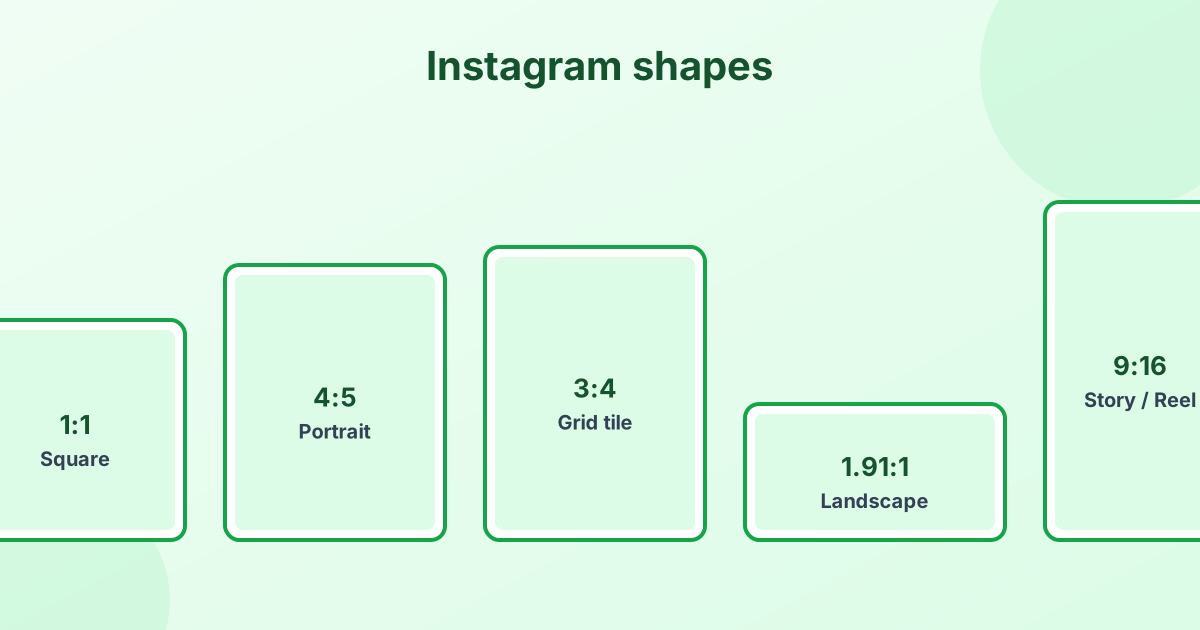
| Instagram post | 1080 × 1080 |
| Instagram portrait | 1080 × 1350 |
| Story, Reel, TikTok | 1080 × 1920 |
| YouTube thumbnail | 1280 × 720 |
| Facebook / link preview | 1200 × 630 |
| X (Twitter) post | 1600 × 900 |
| LinkedIn post | 1200 × 627 |
| Pinterest pin | 1000 × 1500 |
| Full HD | 1920 × 1080 |
See every platform in our social media image sizes guide.
Making an Image Bigger
You can enlarge images here too. But adding pixels can't add real detail, so big jumps look soft. For enlarging by 2× or 4×, use our image upscaler. It sharpens the result for a cleaner look.
Resize vs Compress: What's the Difference?
- Resizing changes the dimensions (width × height in pixels).
- Compressing changes the file size (KB or MB) by storing the data more efficiently.
Resizing a big photo down usually shrinks the file a lot, too. If you need a specific file size, like under 100 KB, use our compress to KB tool after resizing.
Resize Photos Without Uploading Them
Every image is resized inside your browser. Nothing gets uploaded to a server. That means faster results and full privacy for personal photos.
Frequently Asked Questions
How do I resize an image to specific dimensions?
Enter the width and height in pixels. Turn off "Keep proportions" if you need both numbers exactly, then choose Crop to fill or Fit inside.
How do I resize an image without losing quality?
Shrinking images keeps them sharp. Enlarging adds softness. Keep the quality slider at 90% or higher for the best result.
Can I resize many images at once?
Yes. Add a whole batch. Every image gets the same settings. Download them all as a ZIP.
How do I resize a photo for Instagram?
Pick "Instagram post" or "Instagram portrait" from the Preset menu, then click Resize. See our Instagram size guide for all formats.
How do I make an image smaller in KB?
Resize it to smaller dimensions, then use the image compressor. For an exact limit, use compress to KB.
Can I resize a GIF without losing the animation?
Use our GIF resizer. It resizes every frame and keeps the animation.