AI Image Upscaler
Make small photos bigger and sharper. Upscale 2× or 4× with an AI model that runs in your browser, so your image is never uploaded.
Loading tool…
- 100% free
- Unlimited use
- No sign-up
- No payment
- Files stay on your device
- No watermark
How to Upscale an Image
- Open your image. JPG, PNG, WebP and HEIC are supported.
- Choose 2× or 4×. 2× doubles the width and height. 4× makes it four times bigger each way.
- Pick a method. "AI" gives the best detail. "Fast" is instant and works on any device.
- Click "Upscale Image", compare with the original, and download.
More Enhancement Tools
AI Upscaling vs Normal Resizing
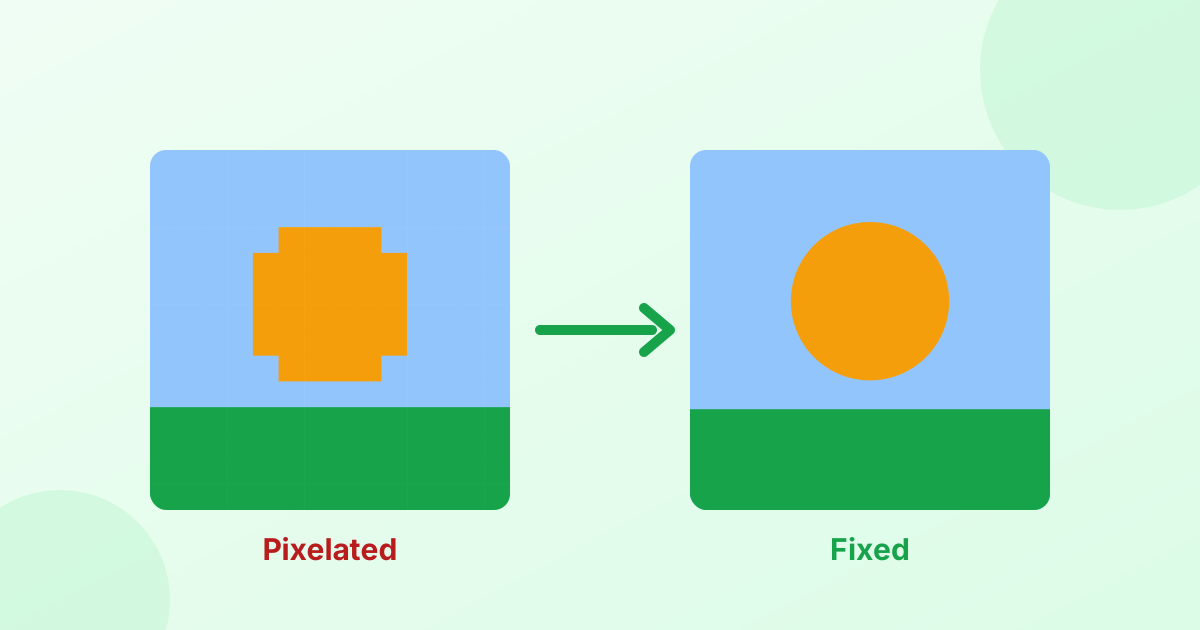
When you enlarge a photo the normal way, the computer just stretches the pixels. It guesses the new pixels by averaging their neighbors. The result looks soft and blurry.
An AI upscaler works differently. It uses a neural network (ESRGAN) trained on thousands of image pairs. It has learned what sharp edges, textures and lines usually look like, so it predicts realistic detail as it enlarges.
| Normal resize | AI upscale | |
|---|---|---|
| Edges | Soft, blurry | Crisp |
| Text and lines | Fuzzy | Cleaner |
| Textures | Smeared | More natural |
| Speed | Instant | Seconds to a minute |
The Fast method in this tool is a smarter version of normal resizing. It enlarges in steps and adds sharpening. It's a good choice for quick jobs or older devices.
What Is Image Upscaling Good For?
- Printing small photos bigger, like old phone pictures or images from social media
- Improving low-resolution product photos for an online store
- Making wallpapers from smaller images
- Restoring old digital photos from early cameras
- Enlarging logos and graphics when you don't have the original file
- Meeting minimum size rules on marketplaces and print services
Tips for the Best Results
- Start with the cleanest image you have. The AI sharpens what's there. Heavy blur or blocky compression can't be fully fixed.
- Use 2× first. If you need more, run the result again or choose 4×.
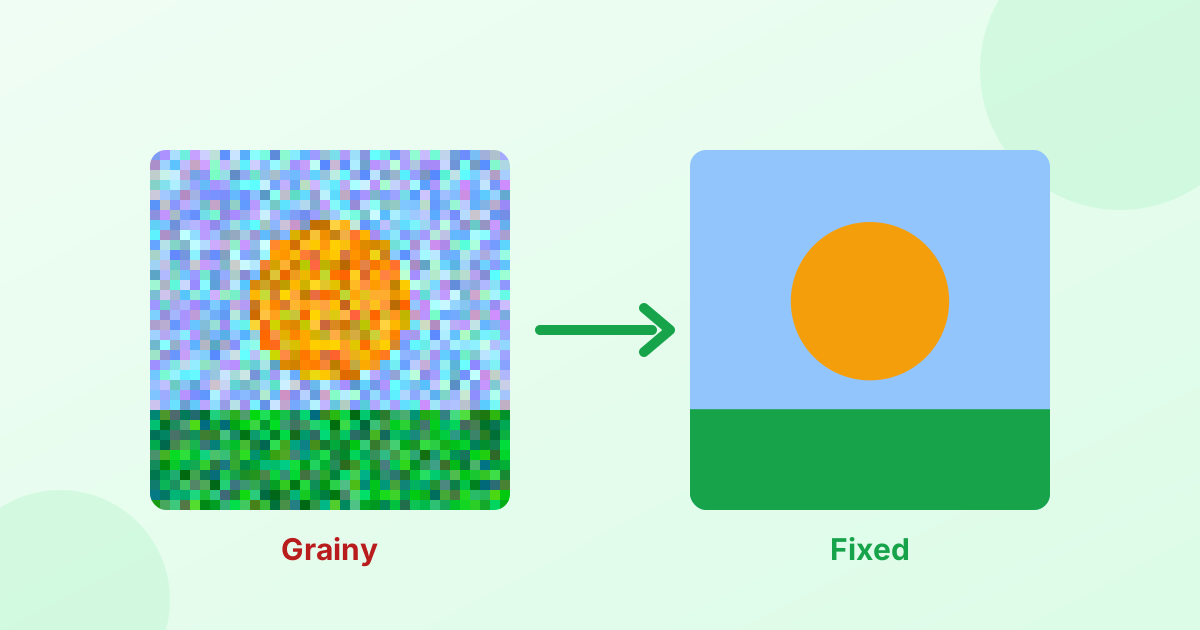
- Fix noise first. If the photo is grainy, clean it with our photo enhancer before upscaling.
- Save as PNG to keep every new detail.
- Need a print at 300 DPI? After upscaling, set the DPI with our DPI changer.
Private AI, Right in Your Browser
Most AI upscalers upload your photo to a cloud server and often limit free use. This one runs the AI model on your own device with TensorFlow.js. The model downloads once (about 1 MB, plus the TensorFlow library) and your photo never leaves your computer or phone.
Large images are scaled to 1200 px on their longest side before AI upscaling, so the process stays fast and doesn't freeze your browser.
Frequently Asked Questions
How do I increase the resolution of an image?
Open it in the upscaler above, choose 2× or 4×, and click "Upscale Image". The AI adds pixels and detail.
Is this AI image upscaler free?
Yes. It's free with no sign-up, no daily limit and no watermark.
Can AI upscaling fix a blurry photo?
It can make it sharper and cleaner, but it can't fully recover detail that was never captured. For mild blur, also try our photo enhancer.
What's the difference between 2× and 4×?
2× doubles the width and height (4 times the pixels). 4× quadruples them (16 times the pixels).
Why is the AI slow on my phone?
AI upscaling needs a lot of computing power. Phones and older laptops take longer. Use the Fast method for instant results.
Is my photo uploaded?
No. The AI runs in your browser. Your image stays on your device.