HEIC to PNG Converter
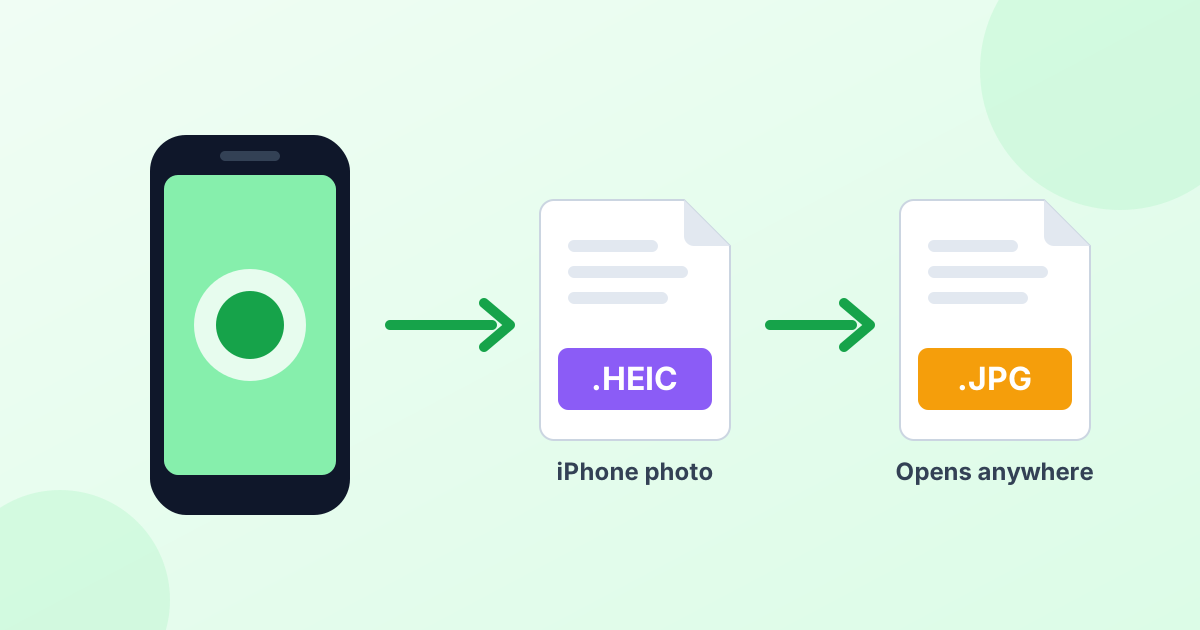
Change iPhone HEIC photos into lossless PNG files. Add your images below. They convert right in your browser, with no upload.
Loading tool…
- 100% free
- Unlimited use
- No sign-up
- No payment
- Files stay on your device
- No watermark
How to Convert HEIC to PNG
- Select your HEIC files. Click the green button or drop your iPhone photos into the box.
- Let the tool work. Each photo turns into a PNG within seconds. You don't have to press anything.
- Save your PNGs. Download them one at a time or all together as a ZIP file.
When Should You Pick PNG Over JPG?
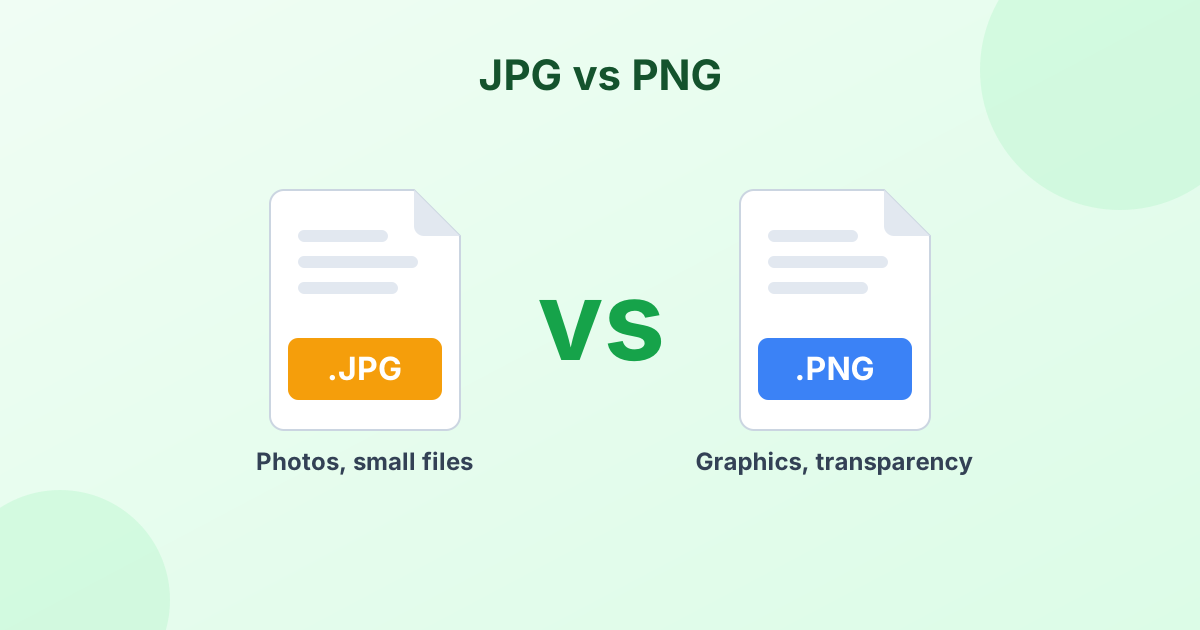
Most people convert HEIC to JPG. It's smaller and works everywhere. But PNG is the better choice in a few cases:
- You plan to edit the photo. PNG is lossless. Saving it again and again won't add blur or blocky spots.
- You need a clean cutout. Removing the background later? PNG keeps transparent areas. JPG can't.
- The image has text or sharp lines. Screenshots, documents and graphics stay crisp in PNG.
- You want the highest quality possible. PNG keeps every single pixel exactly as it was decoded.
The trade-off is size. A PNG from a 12 MP iPhone photo is often 10–20 MB. That's 5–10 times bigger than a JPG.
| You want to… | Best choice |
|---|---|
| Share or upload a photo | JPG |
| Edit the photo many times | PNG |
| Remove the background | PNG |
| Put the photo on a website | WebP |
| Save storage space | JPG or WebP |
Quick fix for huge PNG files
After converting, run your PNG through our PNG compressor. It can often cut the size by 60–80% with no visible change.
Is HEIC to PNG Lossless?
Almost. HEIC itself is a lossy format, so a tiny bit of detail was already gone when your iPhone took the photo. But the step from HEIC to PNG adds zero extra loss. What you see in the HEIC is exactly what you get in the PNG.
The size of your image doesn't change either. A 4032 × 3024 photo stays 4032 × 3024.
Your Photos Stay Private
Personal photos deserve privacy. Many online tools upload your pictures to a remote server. This one doesn't. The conversion happens on your own device, inside your browser. Nothing gets sent anywhere, and nothing gets stored.
HEIC to PNG on Mac, Windows and iPhone
On a Mac, you can open the photo in Preview, choose File > Export, and pick PNG. It's fine for one or two images.
On Windows, there's no built-in way without an extra codec. This page is the easiest route. It works in Chrome, Edge and Firefox.
On iPhone, open this page in Safari. Tap "Choose HEIC Files", pick your photos, and save the PNGs to the Files app.
Curious why Apple uses HEIC at all? Our guide on what a HEIC file is explains it in plain words.
Frequently Asked Questions
How do I convert HEIC to PNG for free?
Drop your HEIC photos into the converter above. They turn into PNG files automatically. Then click Download. It's free, with no limits.
Does HEIC to PNG keep transparency?
Yes, if the HEIC file has transparency. Regular iPhone photos don't have see-through areas, so the PNG will look exactly like the photo.
Why is my PNG so much bigger than the HEIC file?
HEIC uses very efficient lossy compression. PNG uses lossless compression, which keeps every pixel. Photos with lots of detail get large in PNG. Use our PNG compressor to shrink them.
Can I convert HEIF to PNG too?
Yes. HEIF and HEIC belong to the same format family. The tool accepts both .heif and .heic files.
Is there a limit on how many photos I can convert?
No. Convert as many as you like. Very large batches depend only on your device's memory.