HEIC to PDF Converter
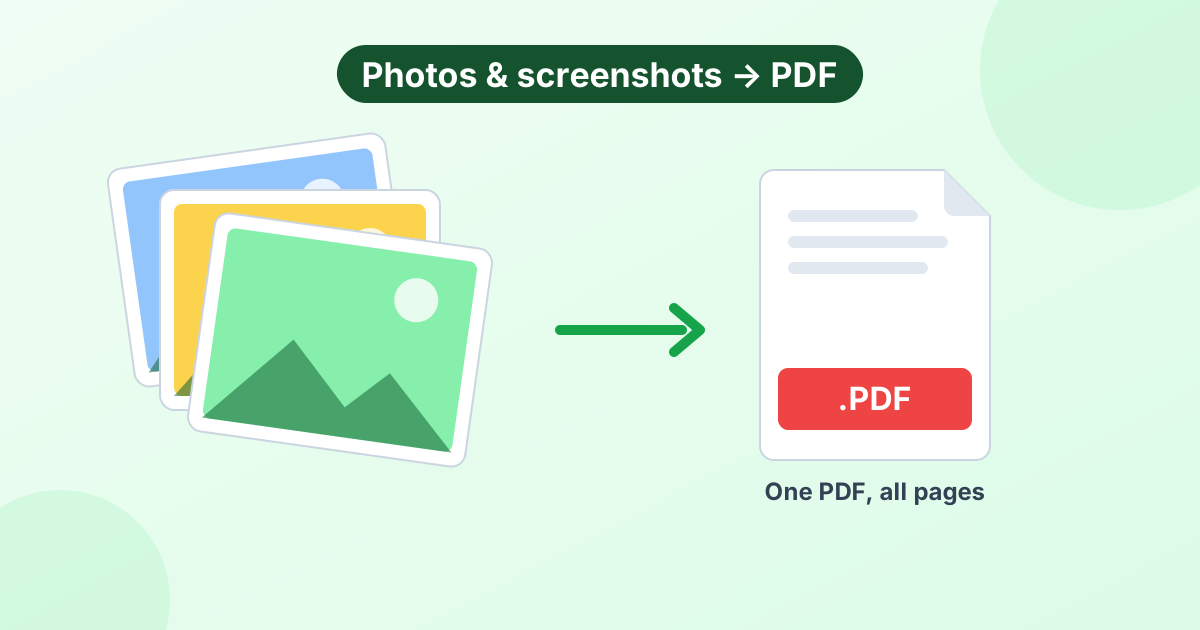
Turn iPhone HEIC photos into a PDF without converting them to JPG first. Combine many photos into one file and download.
Loading tool…
- 100% free
- Unlimited use
- No sign-up
- No payment
- Files stay on your device
- No watermark
How to Convert HEIC to PDF
- Add your HEIC photos. Click "Choose Images" or drag your iPhone photos into the box.
- Arrange the pages. Use the arrows to set the order.
- Pick a page size. A4 or US Letter for documents, or "Same as image" for photo albums.
- Click "Convert to PDF". Done. One clean PDF downloads.
Skip the Extra Step
Normally, you'd convert HEIC to JPG first, then JPG to PDF. This tool reads HEIC files directly. Just drop in your iPhone photos and get a PDF.
It's handy when you've photographed:
- Paper forms you need to submit online
- Receipts for an expense report
- Class notes or a whiteboard
- Pages of an ID or a document for an application
- A set of photos to share as one file
Why Your iPhone Photos Are HEIC
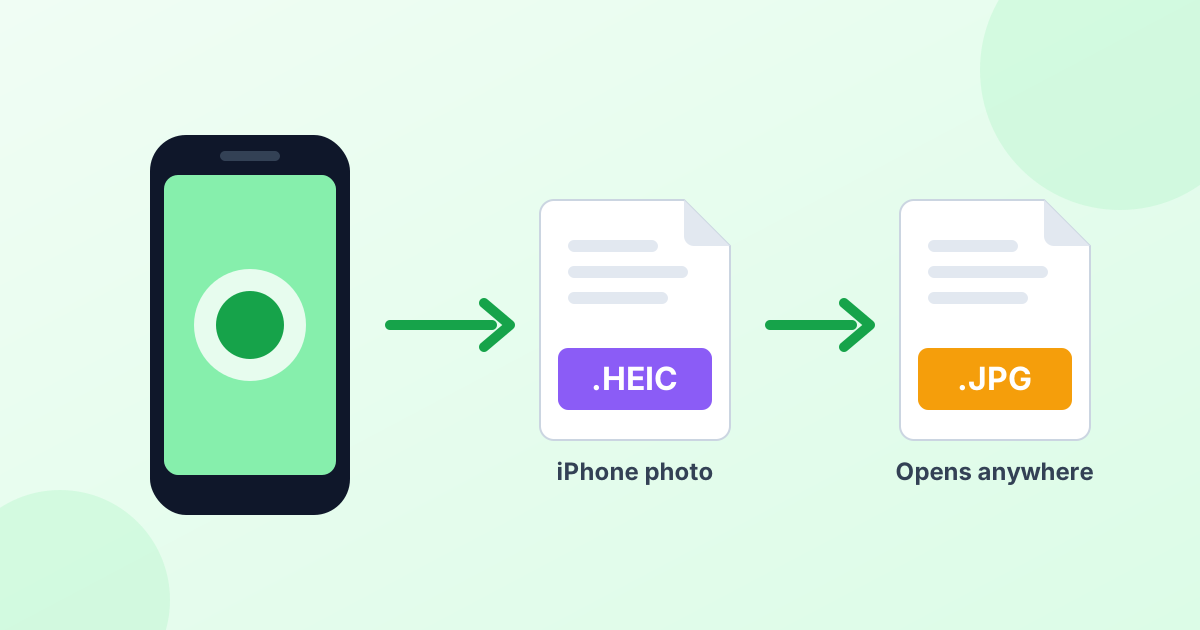
iPhones save photos as HEIC by default. The format keeps great quality at about half the size of a JPG. But many websites and Windows PCs can't open it. Putting the photos in a PDF solves that, since every device can open PDFs. Learn more in What is a HEIC file?
Make the PDF on Your iPhone
You can use this converter right in Safari:
- Open this page on your iPhone.
- Tap Choose Images and select photos from your library.
- Set the order and page size.
- Tap Convert to PDF, then save the file to Files or share it.
Prefer Apple's built-in method? In Photos, select the images, tap Share > Print, then pinch out on the preview to create a PDF. It works, but you get less control over page size and order.
Keep the File Size Down
iPhone photos are large, often 3–5 MB each in JPG terms. A 10-page PDF can get heavy. To keep it small:
- Choose Medium image quality
- Use A4 or Letter instead of "Same as image"
- Resize photos first with our image resizer if needed
Frequently Asked Questions
How do I convert HEIC to PDF?
Add your HEIC photos to the converter above, set the order and click "Convert to PDF". Your PDF downloads right away.
Can I combine many iPhone photos into one PDF?
Yes. Add them all, arrange the order and convert. Each photo becomes one page.
Do I need to convert HEIC to JPG first?
No. The tool reads HEIC directly.
Does it work on Windows?
Yes. Windows can't open HEIC by default, but this converter can. It runs in Chrome, Edge or Firefox.
Are my photos uploaded?
No. The PDF gets created on your device, in your browser.