Compress Image to KB (Exact Size)
Need a photo under 20 KB, 50 KB, 100 KB or 200 KB? Type your size limit and the tool finds the best quality that fits.
Loading tool…
- 100% free
- Unlimited use
- No sign-up
- No payment
- Files stay on your device
- No watermark
How to Compress an Image to a Specific Size
- Set your size limit. Type a number in KB or tap a quick pick like 20 KB, 50 KB or 100 KB.
- Add your photo. Drop a JPG, PNG, HEIC or WebP image into the box.
- Wait a second. The tool tests many quality levels and picks the best one under your limit.
- Download. Your file name shows the target size, so it's easy to find.
Why Do Forms Ask for a Size in KB?
Online application forms often set strict file size rules. You'll see them on:
- Job portals – "Photo must be under 100 KB"
- Exam and school applications – "Photo 20–50 KB, signature 10–20 KB"
- Government and visa sites – "Max 200 KB"
- ID card and passport services
- Old forum and profile systems
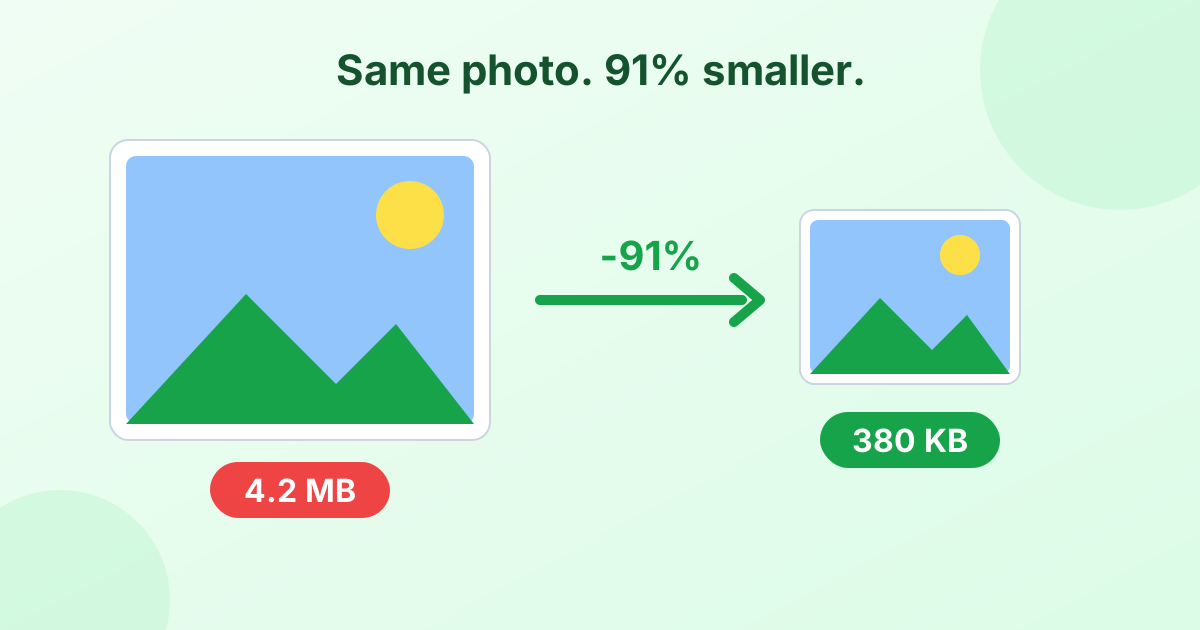
These limits keep their servers fast. But your phone takes photos of 2–5 MB. That's 50 times too big. This tool closes the gap without making your photo look bad.
How It Works
The tool runs a quick search for the best result:
- It tries different JPEG quality levels, from high to low.
- It keeps the highest quality that fits under your limit.
- If even the lowest quality is still too big, it reduces the dimensions a little and tries again.
The result is always the sharpest possible image for the size you need.
Common Size Targets
| Target | Typical use | Tip |
|---|---|---|
| 10–20 KB | Signatures, small ID photos | Crop tightly first |
| 20–50 KB | Exam and application photos | Use a plain background |
| 100 KB | Job portals, profile pictures | Works for most face photos |
| 200 KB | Visa and government forms | Plenty of detail |
| 500 KB – 1 MB | Email attachments, listings | Very high quality |
Get a better result at tiny sizes
Small limits like 20 KB work much better if you crop the photo first. Remove extra background with our crop tool, so the pixels go where they matter: your face or signature.
Check Other Requirements Too
Many forms also ask for a specific pixel size (like 200 × 230 px) or a white background. Do those steps first, then compress:
- Crop the image to the right shape.
- Resize it to the exact pixel dimensions.
- Change the background to white if required.
- Compress it to the KB limit here.
Private and Free
Application photos are personal. This tool never uploads them. Everything happens in your browser, on your device.
Frequently Asked Questions
How do I compress a photo to 100 KB?
Type 100 in the target box (or tap "100 KB"), then add your photo. The tool shrinks it to just under 100 KB automatically.
How do I reduce an image to 20 KB?
Tap "20 KB" and add the image. For the best quality, crop the photo tightly first.
Can I compress an image to 50 KB without losing quality?
Some quality loss is needed at small sizes. The tool keeps it as low as possible by finding the highest quality that fits.
What if my image needs to be between 20 KB and 50 KB?
Set the target to 50 KB. The result will be just under 50 KB, which is usually well above 20 KB.
Why did it say "Could not reach target"?
The limit is very small for that image. Crop the photo or resize it to fewer pixels, then try again.
Does it work with HEIC photos from iPhone?
Yes. HEIC photos get converted to JPG and compressed to your size in one step.