HEIC to JPG Converter
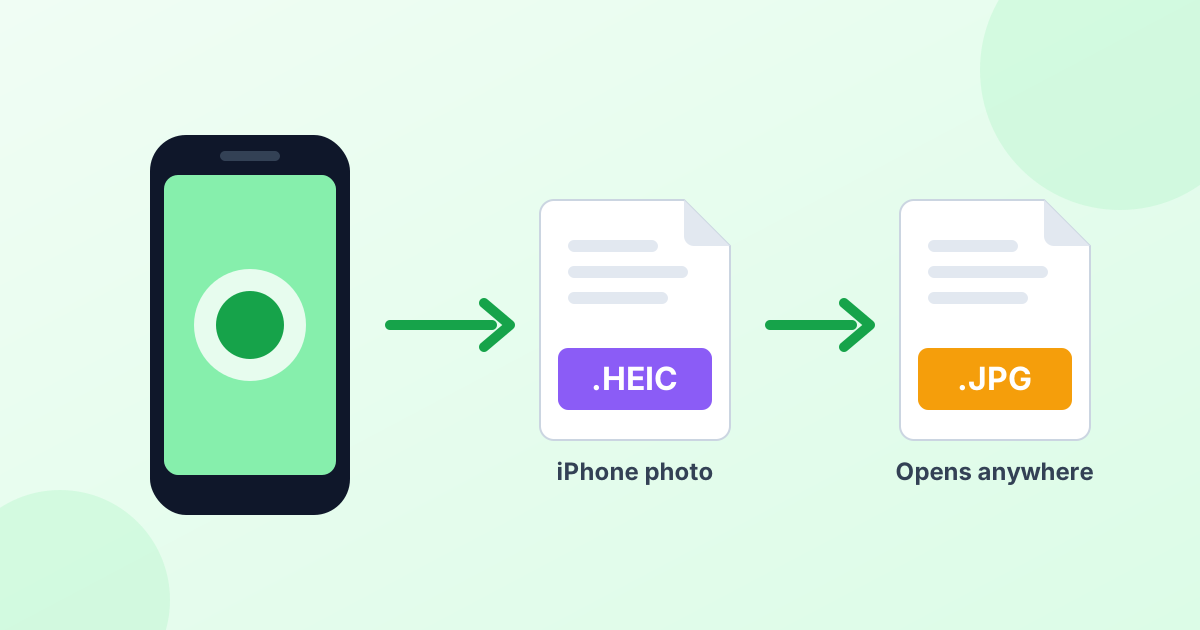
Turn iPhone photos into JPG files that open on any device. Drop your HEIC or HEIF images below and get JPGs in seconds.
Loading tool…
- 100% free
- Unlimited use
- No sign-up
- No payment
- Files stay on your device
- No watermark
How to Convert HEIC to JPG
- Add your HEIC photos. Click "Choose HEIC Files" or drag them into the box. You can add one photo or a hundred.
- Wait a few seconds. The converter starts on its own. Each photo turns into a JPG right inside your browser.
- Download your JPGs. Save files one by one, or grab them all at once with "Download All (ZIP)".
Want a smaller file? Lower the Quality slider and click Convert again. A setting of 80–85% keeps photos sharp and cuts the size a lot.
Why Convert HEIC Files to JPG?
Your iPhone saves photos as HEIC by default. The format is smart. It keeps great quality at about half the size of a JPG. The problem? Many places still can't open it.
You'll likely hit a wall when you try to:
- Open iPhone photos on a Windows PC
- Upload pictures to a job portal, school form or government site
- Attach images to an email for someone on Android
- Edit photos in older software
- Print pictures at a local store or kiosk
JPG works everywhere. Every phone, computer, browser and website can read it. So converting HEIC to JPG is the quickest way to make your photos easy to share.
What Makes This HEIC Converter Different
| Feature | What it means for you |
|---|---|
| No upload | Your photos never leave your device. The conversion runs in your browser. |
| Batch converting | Convert a whole camera roll in one go, then download a single ZIP. |
| Quality control | Pick any quality from 10% to 100%. |
| Works on any device | Use it on Windows, Mac, iPhone, Android or a Chromebook. |
| Free forever | No sign-up, no limits, no watermark. |
Privacy matters with personal photos. Most online converters upload your pictures to a server. This one doesn't. You can even turn off Wi-Fi after the page loads, and it will keep working.
HEIC vs JPG: Quick Comparison
| HEIC | JPG | |
|---|---|---|
| File size | Smaller (about 50% of JPG) | Larger |
| Quality at same size | Better | Good |
| Works on Windows | Needs an extension | Yes |
| Works on websites | Rarely | Almost always |
| Supports transparency | Yes | No |
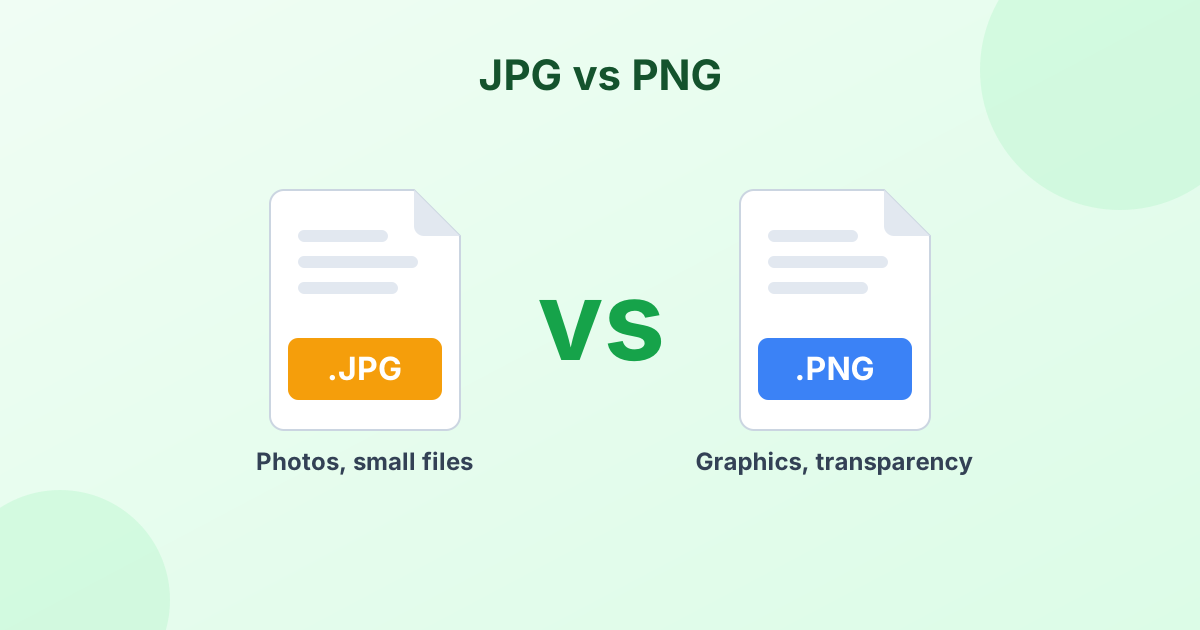
| Best for | Storing photos on Apple devices | Sharing, uploading, printing |
In short, HEIC is great for storage. JPG is great for sharing. Read our guide on what a HEIC file is if you want the full story.
Convert HEIC to JPG on Windows, Mac and iPhone
This online tool works the same on every system. Still, each device has its own built-in options too.
On Windows 10 and 11
Windows can't open HEIC files out of the box. You can install the "HEIF Image Extensions" app from the Microsoft Store, but some versions cost money. The faster fix is this page. Drag your files in, and you're done.
On a Mac
Open the photo in Preview. Click File > Export, pick JPEG from the Format menu, and click Save. This works well for a few photos. For dozens of files, our batch converter is quicker.
On iPhone
Go to Settings > Camera > Formats and choose Most Compatible. Your iPhone will now shoot in JPG. This only affects new photos, though. For older HEIC pictures, open this page in Safari and convert them here.
Pro tip
You can also make your iPhone send JPGs automatically. Go to Settings > Photos and set "Transfer to Mac or PC" to Automatic.
Will I Lose Quality?
A little, but you won't notice it at high settings. JPG uses lossy compression. At 90% or more, the result looks the same as the original to the human eye.
Your photo keeps its full resolution. A 4032 × 3024 iPhone photo stays 4032 × 3024 after conversion. Need a smaller photo for a form or website? Run it through our image resizer or JPEG compressor next.
Frequently Asked Questions
Is this HEIC to JPG converter free?
Yes, it's 100% free. There are no daily limits, no sign-up and no watermark on your photos.
Are my photos uploaded to a server?
No. The conversion happens inside your web browser. Your photos stay on your phone or computer the whole time.
How do I convert HEIC to JPG on Windows?
Open this page in Chrome, Edge or Firefox. Drag your HEIC files into the box above, then click Download. You don't need to install any app or extension.
Can I convert many HEIC files at once?
Yes. Select as many files as you like. When they're done, click "Download All (ZIP)" to save every JPG in one file.
Does it work with HEIF files too?
Yes. HEIF and HEIC are the same family of formats. The tool reads both .heic and .heif files.
What's the difference between HEIC to JPG and HEIC to JPEG?
There is none. JPG and JPEG are two names for the exact same format. Learn why in our JPG vs JPEG guide.
Why does my converted photo look rotated?
Most photos keep their correct direction. If one comes out sideways, use our free rotate image tool to fix it in one click.
How do I convert a HEIC file to JPG?
Drop the HEIC file into the converter above. It changes to a JPG automatically, keeping the full resolution. Then click Download.