JPG to PDF Converter
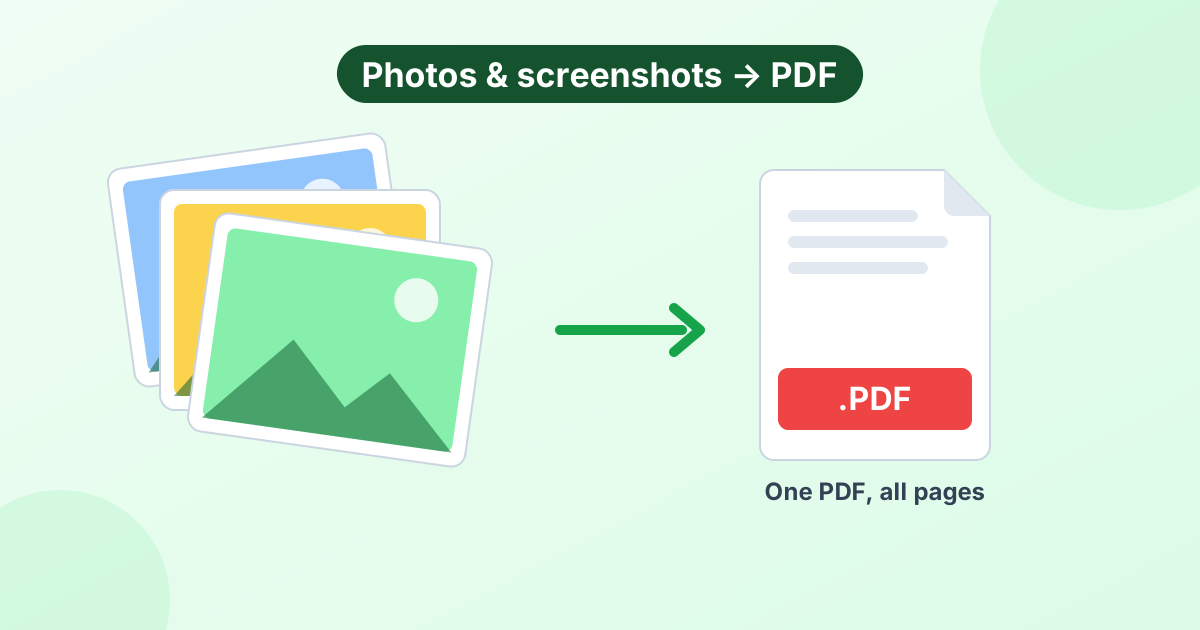
Turn JPG and JPEG photos into a PDF in seconds. Combine many images into one file, set the page size and download.
Loading tool…
- 100% free
- Unlimited use
- No sign-up
- No payment
- Files stay on your device
- No watermark
How to Convert JPG to PDF
- Select your JPG files. Click "Choose Images" or drag JPEG photos into the box.
- Arrange the pages. Use the arrows to set the order. Remove any photo with the ✕ button.
- Pick page size and margin. A4 and US Letter fit standard paper. "Same as image" fits each photo exactly.
- Convert and download. Click "Convert to PDF" and your file saves instantly.
Combine Multiple JPGs Into One PDF
This is the most common reason people convert JPG to PDF. Maybe you photographed a 5-page form, a stack of receipts or class notes. Instead of sending 5 attachments, you send one tidy PDF.
The converter handles that in one go. Add all the JPEGs, put them in order, and click once. Every image becomes a page in the same PDF.
Need separate files instead? Tick One PDF per image and you'll get a ZIP with one PDF for each photo.
JPG vs PDF: When to Use Which
| Use JPG when… | Use PDF when… |
|---|---|
| Sharing a single photo | Sending several pages together |
| Posting to social media | Submitting forms, applications or claims |
| Editing the picture | Printing at a fixed page size |
| A site asks for an image | A site asks for a document |
Tips for Scanned Documents
Photos of paper documents turn into great PDFs with a little prep:
- Shoot from directly above in good light, without shadows.
- Crop the edges using our image cropper so only the paper shows.
- Rotate sideways photos with our rotate image tool.
- Use A4 or Letter so the PDF prints on normal paper.
- Set quality to Medium if the PDF must stay under an upload limit.
JPG to PDF on Windows, Mac and Phones
Windows: Select the JPGs in File Explorer, right-click, choose Print, and pick Microsoft Print to PDF.
Mac: Open the photos in Preview, select them in the sidebar, then choose File > Print > Save as PDF.
iPhone: In Photos, select the images, tap Share, then Print. Pinch out on the preview and share the PDF.
Or skip all that and use the converter above. It works the same on every device. Our image to PDF guide has the full steps for each system.
Frequently Asked Questions
How do I convert a JPG to PDF for free?
Drop the JPG into the converter above and click "Convert to PDF". The PDF downloads straight away. It's free and has no limits.
Can I convert JPEG to PDF too?
Yes. JPG and JPEG are the same format. The tool accepts both, plus PNG, HEIC and more.
How do I put multiple JPGs in one PDF?
Add all of them at once, set the order with the arrows, then click Convert. They'll all go into a single PDF.
Does converting JPG to PDF reduce quality?
Not at "High" quality. Lower settings make smaller PDFs with slightly more compression.
Is my document uploaded?
No. The PDF gets built in your browser. Your photos never leave your device.