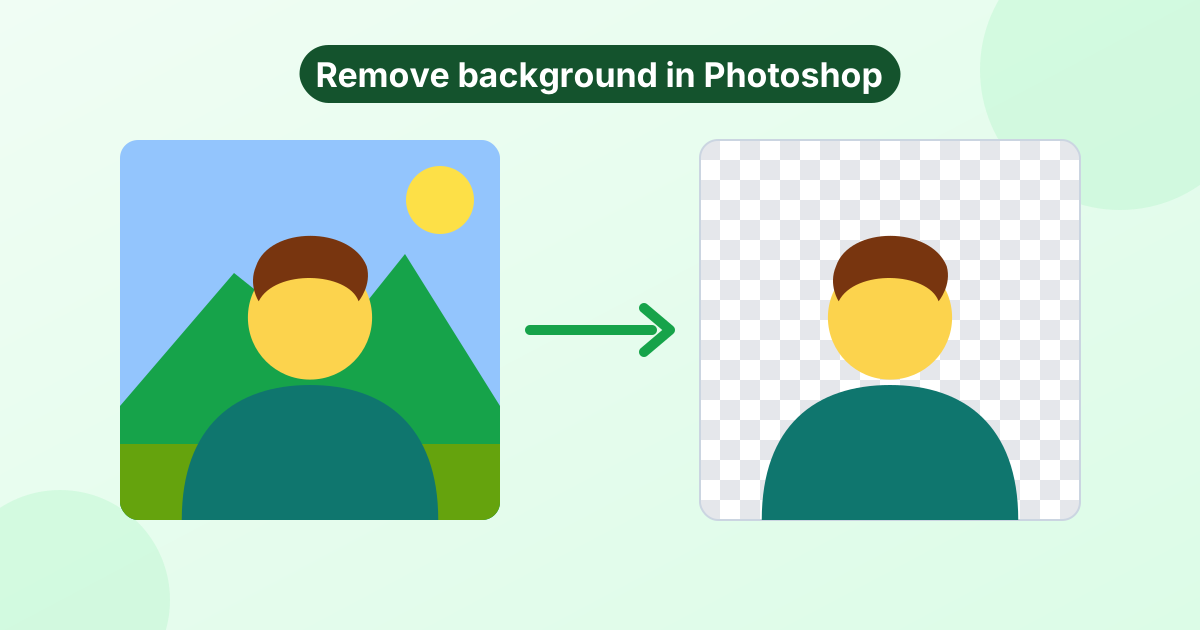
Change Background Color of a Photo
Swap a messy background for a clean white, black or brand color. The AI finds the subject, and you pick the new background.
Loading tool…
- 100% free
- Unlimited use
- No sign-up
- No payment
- Files stay on your device
- No watermark
How to Change a Photo's Background Color
- Upload your photo. JPG, PNG, WebP and HEIC are supported.
- Wait for the AI. It removes the old background automatically. A white background is added by default.
- Pick a new color. Click a swatch, use the color picker, or choose "Blur original".
- Download. Save as JPG for small files or PNG for the best quality.
Popular Background Colors and When to Use Them
| Background | Great for |
|---|---|
| White | Product photos, online stores, ID-style photos, resumes |
| Light gray | Passport-style photos in some countries, professional headshots |
| Black | Dramatic portraits, fashion, luxury products |
| Solid brand color | Social media posts, YouTube thumbnails, team pages |
| Blurred original | Natural portrait look, like a phone's portrait mode |
| Transparent | Logos, stickers, layering in other designs |
White Background for Product Photos
Online marketplaces love clean, white backgrounds. Many require them for the main product image. A white background makes products stand out and keeps your store looking consistent.
With this tool, you can shoot on a kitchen table and still get a studio-style result. Upload the photo, keep the white background, and download. Then use our image resizer to hit the exact size a marketplace asks for.
A Black Background Portrait
A black background creates a bold, cinematic look. It hides distractions and puts all the focus on the face. Click the black swatch after the AI finishes. For a softer look, try a very dark gray with the color picker.
Blur the Background Instead
Not ready to replace the scene completely? Click Blur original. The tool keeps your subject sharp and softens the original background behind it. It's a quick way to fake a shallow depth of field, like a DSLR portrait.
Tips for Natural Results
- Match the lighting. A bright subject on a dark background can look pasted on. Pick a shade that fits the photo's mood.
- Check the edges. Zoom in around hair and shoulders. Use Hold to compare to see the original.
- Use PNG for editing. If you'll keep working on the image, download PNG to avoid compression.
Frequently Asked Questions
How do I change the background color of a photo?
Upload the photo above. The AI removes the old background, then you click any color swatch. Download when you're happy.
How do I make a photo background white?
Upload the photo. The tool adds a white background by default once the old one is removed. Click Download.
Can I use my own custom color?
Yes. Click the color picker next to the swatches and choose any shade.
Is the photo uploaded to a server?
No. Everything happens in your browser. Your photo stays on your device.
Does it work for passport photos?
It's great for creating a plain white or light background. Check your country's official photo rules for size and other requirements.