Image to Text Converter (OCR)
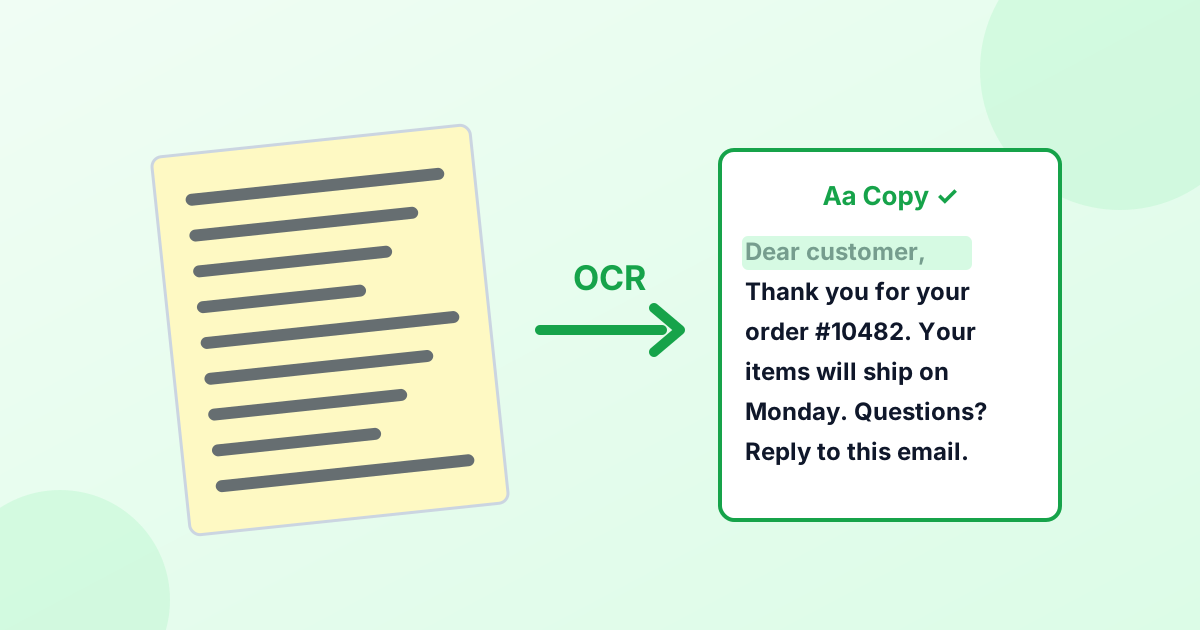
Pull editable text out of photos, screenshots and scanned pages. Copy it in one click. The OCR engine runs in your browser, so nothing is uploaded.
Loading tool…
- 100% free
- Unlimited use
- No sign-up
- No payment
- Files stay on your device
- No watermark
How to Extract Text From an Image
- Add your image. Choose a JPG, PNG, WebP or HEIC file, or paste a screenshot with Ctrl+V.
- Pick the language. Choose the language of the text. Add a second one if the image mixes languages.
- Click "Extract Text". The OCR engine reads the image in a few seconds.
- Copy or download. Edit the text if needed, then copy it or save it as a .txt file.
What Can You Convert to Text?
- Screenshots of chats, emails, websites and error messages
- Photos of documents, receipts, letters and forms
- Scanned pages from books and printers
- Slides and whiteboards photographed in class or meetings
- Signs, menus and posters
- JPG to text and PNG to text for any image file
How Accurate Is It?
The tool uses Tesseract, a well-known open-source OCR engine. On clear, printed text it's very accurate, often above 95%. Accuracy drops with:
| Makes OCR harder | Fix |
|---|---|
| Blurry or low-resolution images | Use a sharper photo, or try our photo enhancer |
| Tilted or curved pages | Photograph straight on, or rotate and crop first |
| Busy backgrounds | Crop to just the text |
| Handwriting | OCR works best on printed text |
| Very small text | Zoom in when you take the photo |
| Wrong language selected | Pick the right language before extracting |
The tool automatically enlarges small images and boosts contrast, which helps with most screenshots.
Supported Languages
English, Spanish, French, German, Portuguese, Italian, Dutch, Polish, Turkish, Russian, Ukrainian, Arabic, Urdu, Hindi, Bengali, Indonesian, Vietnamese, Thai, Chinese (Simplified and Traditional), Japanese and Korean.
Each language's data downloads the first time you use it, then stays cached in your browser.
Private OCR
Most image-to-text websites upload your picture to a server. That's a problem for IDs, bank documents, medical letters and private messages. This tool runs the OCR engine inside your browser. Your image is never uploaded.
Have a PDF Instead?
Convert the PDF pages to images first with our PDF to PNG converter, then extract the text here. Use 300 DPI for the best accuracy.
Want to know how OCR works? Read What is OCR?
Frequently Asked Questions
How do I copy text from an image?
Add the image to the converter above, pick the language and click "Extract Text". Then click "Copy Text".
Is this image to text converter free?
Yes. It's free with no sign-up, no limits and no watermark.
Can it read handwriting?
It can read neat handwriting sometimes, but it's designed for printed text. Results with handwriting vary a lot.
Can I convert a screenshot to text?
Yes. Screenshots usually give excellent results because the text is sharp. You can paste a screenshot directly with Ctrl+V.
Does it work on my phone?
Yes. It works in mobile browsers. On iPhone, you can also use Live Text: tap and hold text in a photo to select it.
Are my images uploaded?
No. Text recognition happens on your device, in your browser.