How to Convert an Image to PDF (On Any Device)
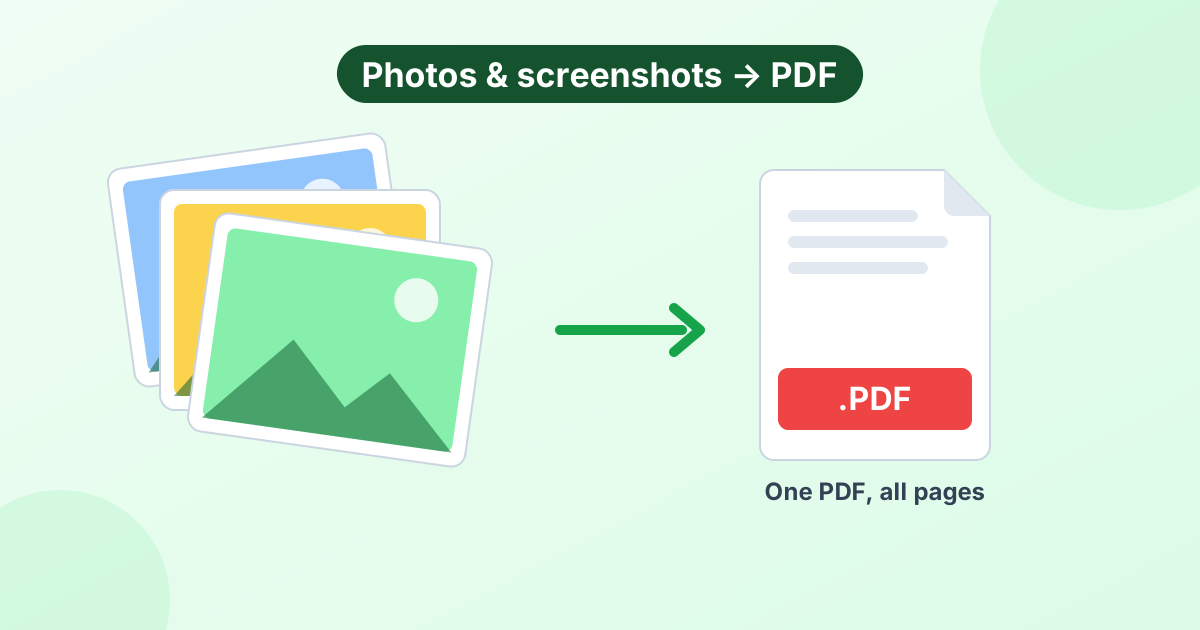
Need to turn a photo, JPG, PNG or screenshot into a PDF? Every phone and computer can do it, often without installing anything. Here are the fastest ways.
The Fastest Way (Works Everywhere)
If you want one method that works on every device, use an online converter that runs in your browser:
- Open our free image to PDF converter.
- Add your photos, screenshots or scans.
- Drag them into order with the arrows.
- Click Convert to PDF. The file downloads instantly.
It works on iPhone, Android, Windows, Mac and Chromebook. Your images aren't uploaded, so it's safe for personal documents too.
Prefer built-in apps? Here's how to do it on each device.
How to Convert a Picture to PDF on iPhone
Method 1: The Print trick (Photos app)
- Open Photos and select one or more pictures.
- Tap the Share button.
- Scroll down and tap Print.
- On the preview, pinch outward with two fingers on the first page.
- A PDF opens. Tap Share again and choose Save to Files or send it.
Method 2: The Files app
- Save your photos to the Files app.
- Select the images (tap Select in the top corner).
- Tap the ⋯ button at the bottom and choose Create PDF.
Method 3: Scan a document with Notes
If you're photographing paper, open Notes, tap the camera icon, and choose Scan Documents. iPhone straightens the page and saves it as a clean PDF.
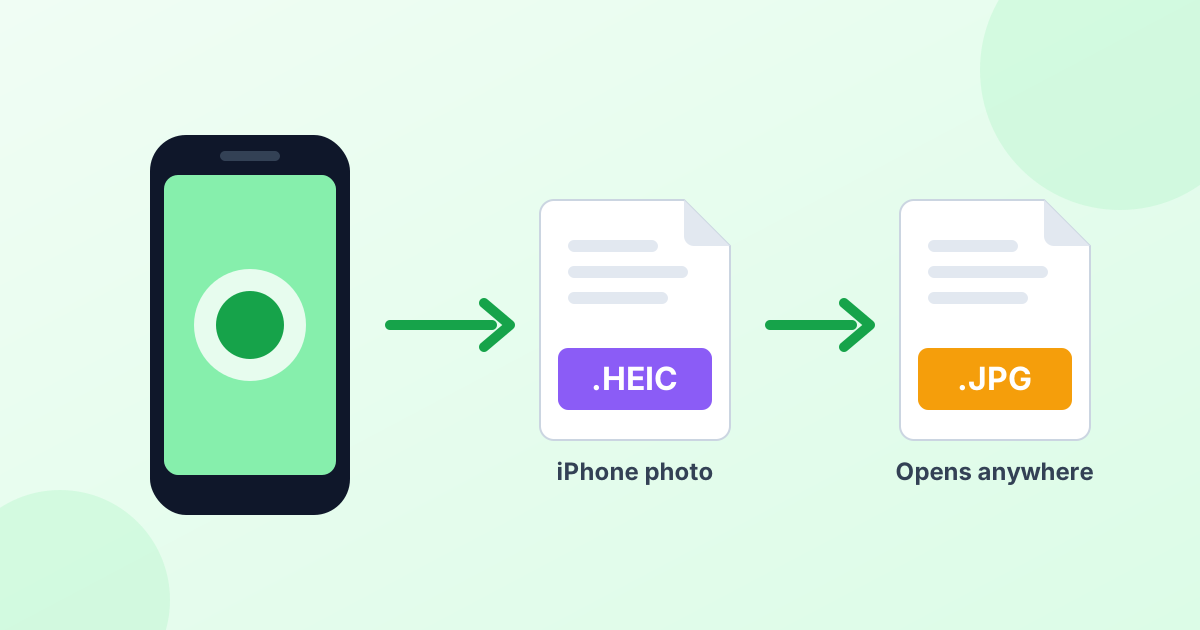
iPhone photos are HEIC
iPhones save photos in HEIC format. Our HEIC to PDF converter reads them directly, so you don't need to convert to JPG first. Learn more in What is a HEIC file?
How to Convert a Picture to PDF on Android
Method 1: Print to PDF
- Open the photo in Google Photos or your gallery app.
- Tap the ⋮ (three dots) menu and choose Print.
- At the top, set the printer to Save as PDF.
- Tap the PDF download button and pick a folder.
Method 2: Google Drive scanner
In the Google Drive app, tap +, then Scan. Take photos of each page. Drive saves them as one PDF.
How to Convert an Image to PDF on Windows
Microsoft Print to PDF
- Select one or more images in File Explorer.
- Right-click and choose Print (on Windows 11, click Show more options first).
- Set the printer to Microsoft Print to PDF.
- Pick a paper size and layout, then click Print.
- Choose a name and location for the PDF.
Tip: untick Fit picture to frame if Windows crops the edges of your photos.
How to Convert an Image to PDF on a Mac
Preview
- Select the images in Finder and open them in Preview.
- In the Preview sidebar, drag thumbnails into the right order.
- Select all the thumbnails (Cmd+A).
- Choose File > Print.
- Click the PDF menu at the bottom left and choose Save as PDF.
For a single image, you can also use File > Export as PDF.
How to Turn a Screenshot Into a PDF
Screenshots work just like photos:
- On iPhone, tap the screenshot preview right after taking it. Choose Full Page (in Safari) and tap Done > Save PDF to Files.
- On any device, add the screenshot to our PNG to PDF converter and keep the page size on "Same as image".
Comparison: Which Method Should You Use?
| Device | Built-in method | Best for |
|---|---|---|
| iPhone | Print trick or Files app | Quick, a few photos |
| Android | Print > Save as PDF | One photo at a time |
| Windows | Microsoft Print to PDF | Several images |
| Mac | Preview > Save as PDF | Ordering many pages |
| Any device | Online image to PDF tool | Many images, page size control, HEIC |
Tips for a Better PDF
- Get the order right first. It's easier than rearranging pages later.
- Crop and rotate your photos before converting. Use our crop tool and rotate tool.
- Watch the file size. Phone photos are big. Pick medium quality or compress the images first if the PDF must be small.
- Use A4 or Letter for documents. It keeps pages a printable size.
How to Get Images Back Out of a PDF
Need the reverse? Use our PDF to JPG converter to turn each page into an image, or PDF to PNG for sharper text.
Frequently Asked Questions
How do I make a picture a PDF?
Open our image to PDF converter, add the picture and click Convert. Or use the Print to PDF option built into your phone or computer.
How do I save a JPG as a PDF?
On Windows, right-click the JPG, choose Print, and select Microsoft Print to PDF. On Mac, open it in Preview and choose File > Export as PDF. Or use our free JPG to PDF converter.
How do I convert a picture to PDF on iPhone for free?
Select the photo in Photos, tap Share > Print, pinch out on the preview, then save the PDF to Files.
How do I combine multiple images into one PDF?
Add all the images to an image to PDF converter, arrange them, and convert. On Mac, Preview can do this too.
Can I add an image to an existing PDF?
That needs a PDF editor. A simple workaround is to convert the PDF pages to images, then combine everything into a new PDF with our converter.