How to Remove a Background in Photoshop (4 Easy Ways)
Photoshop gives you several ways to remove a background. Some take one click. Others give you perfect control. Here's when to use each one.
Quick Answer
In recent versions of Photoshop, open your photo, find the Properties or Contextual Task Bar, and click Remove Background. Photoshop adds a layer mask that hides the background. That's it.
For trickier images, use Select Subject, the Magic Wand, or the Pen Tool. We'll walk through each.
Before You Start: Unlock the Layer
New photos open as a locked Background layer. You can't make parts of it transparent until you unlock it.
- In the Layers panel, click the lock icon on the Background layer.
- It becomes "Layer 0", which supports transparency.
Method 1: Remove Background (One Click)
Best for: people, products and pets with a clear subject.
- Unlock the layer.
- Go to Window > Properties.
- Under Quick Actions, click Remove Background.
- Photoshop creates a mask that hides the background.
You can also find it in the floating Contextual Task Bar under the image. The mask is non-destructive. Paint on it with black to hide more, or white to bring parts back.
Method 2: Select Subject + Layer Mask
Best for: more control over the edges.
- Go to Select > Subject. Photoshop's AI selects the main subject.
- Click Select and Mask in the top bar to refine the edges.
- Use the Refine Edge Brush over hair and fur.
- Set Output To as Layer Mask and click OK.
The Select and Mask workspace is the secret to clean hair. Brush along the hairline and Photoshop separates the strands from the background.
Method 3: Magic Wand or Object Selection
Best for: plain, single-color backgrounds.
- Pick the Magic Wand Tool (press W).
- Set Tolerance to about 20–40 in the top bar.
- Click the background. Hold Shift and click to add more areas.
- Press Delete (or add a mask with the selection inverted).
For logos on white, this is very fast. Our free transparent background maker works the same way, right in your browser.
Method 4: Pen Tool (Most Precise)
Best for: products with hard edges, like phones, bottles and furniture.
- Choose the Pen Tool (press P).
- Click around the object to create points. Click and drag to make curves.
- Close the path back at the first point.
- Right-click and choose Make Selection.
- Add a layer mask.
It's slower, but it gives perfectly smooth edges. Pros use it for e-commerce catalogs.
Which Method Should You Use?
| Method | Speed | Best for | Skill level |
|---|---|---|---|
| Remove Background | Fastest | People, pets, products | Beginner |
| Select Subject + Mask | Fast | Hair, fur, detailed edges | Intermediate |
| Magic Wand | Fast | Solid color backgrounds | Beginner |
| Pen Tool | Slow | Hard-edged products | Advanced |
How to Change or Blur the Background in Photoshop
Change the color: Add a new layer under your subject (Layer > New Fill Layer > Solid Color). Pick any color.
Add a new photo: Drag another image into the document and place it below the subject layer.
Blur the background: Duplicate the original layer, put it below the cutout, and apply Filter > Blur > Gaussian Blur. For a realistic effect, try Filter > Blur Gallery > Field Blur.
How to Save With a Transparent Background
- Hide or delete any background layers.
- Choose File > Export > Export As.
- Pick PNG and make sure Transparency is ticked.
- Click Export.
Don't save as JPG. JPG can't store transparency, so the background turns white. Learn why in JPG vs PNG.
No Photoshop? Use a Free Tool
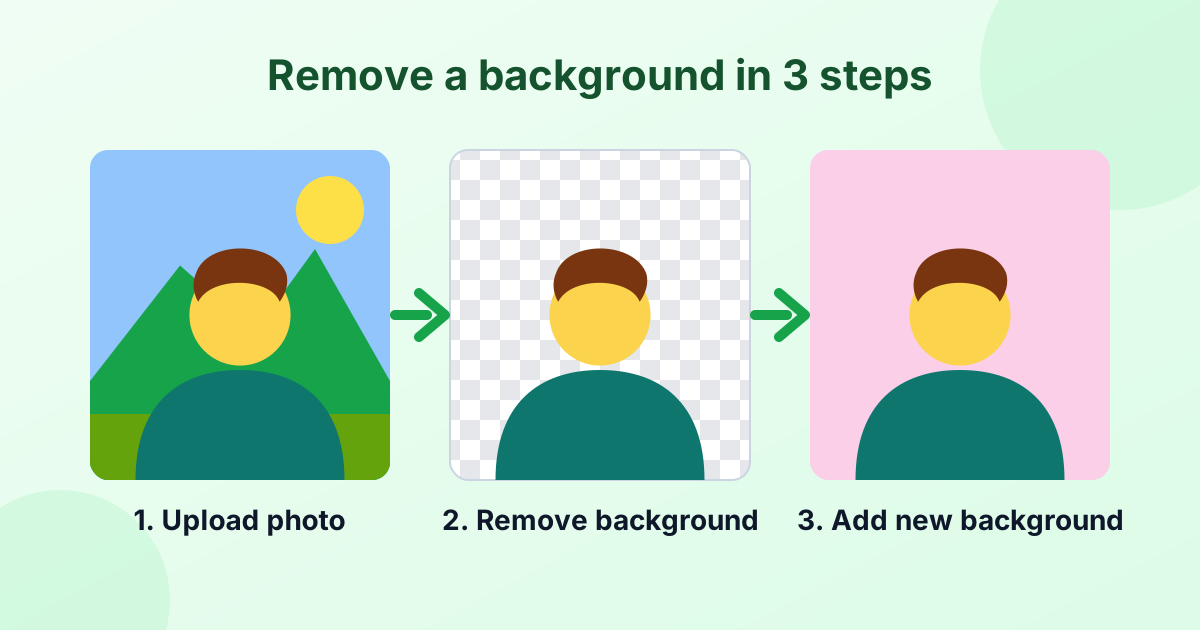
Photoshop is powerful, but it's a paid subscription. For quick jobs, our free AI background remover gives you a transparent PNG in seconds. Need a colored background? Use change background color. Both run in your browser, and nothing gets uploaded.
Frequently Asked Questions
Why can't I find "Remove Background" in Photoshop?
It's in Photoshop 2020 (version 21) and newer. Make sure the layer is unlocked and open Window > Properties. In newer versions, it's also in the Contextual Task Bar.
Why does Photoshop say it couldn't find a background to remove?
The layer may still be locked, or the image may not have a clear subject. Unlock the layer, or use Select Subject or the Magic Wand instead.
How do I remove a white background in Photoshop?
Use the Magic Wand with a low tolerance and click the white area. Or use Select > Color Range and pick white.
How do I blur a background in Photoshop?
Separate the subject with a mask, then apply Gaussian Blur or Field Blur to a copy of the background layer.
Can I remove a background without Photoshop?
Yes. Free online tools like our background remover do it in one click.