How to Remove a Background in Canva (Step by Step)
Canva makes background removal easy, but the best tool sits behind Canva Pro. Here's how to use it, and how to get the same result free.
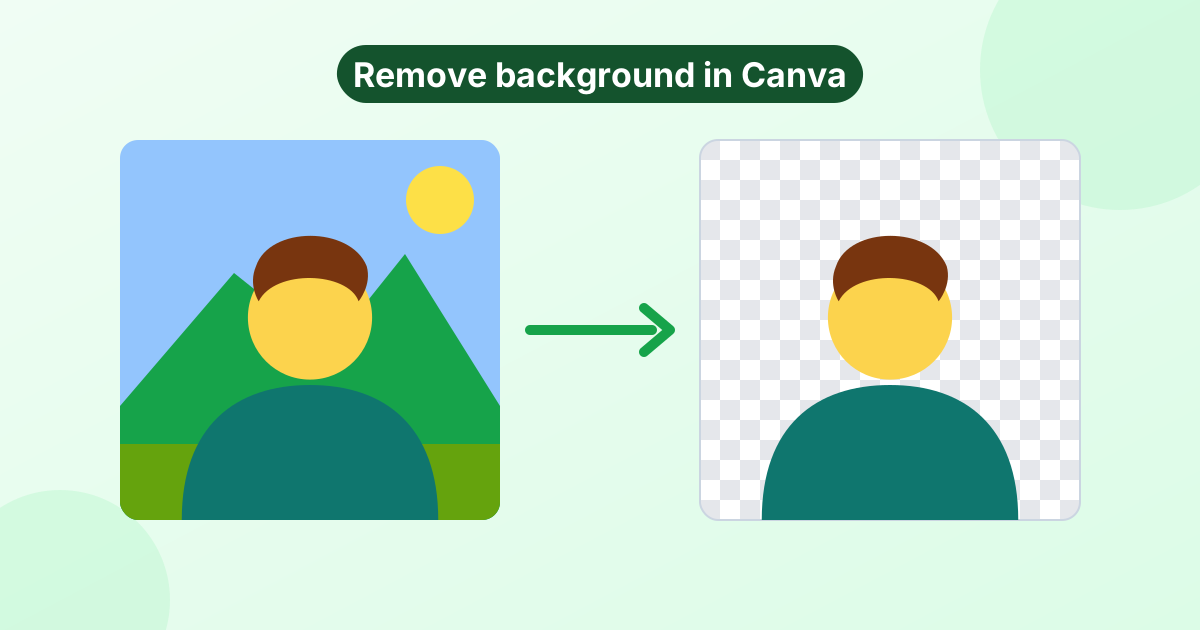
Can You Remove a Background in Canva for Free?
Canva's one-click Background Remover is a Canva Pro feature. Free accounts can see the button, but clicking it asks you to upgrade. (Canva does offer free Pro trials, and Canva for Education and Nonprofits accounts include it.)
If you don't have Pro, don't worry. You can remove the background with a free tool first, then upload the result to Canva. We'll cover both methods below.
Method 1: Canva Pro Background Remover
On a computer
- Open your design in Canva.
- Click the photo you want to edit.
- Click Edit (or Edit photo) in the top toolbar.
- Choose BG Remover (Background Remover) from the effects panel.
- Wait a few seconds. Canva erases the background automatically.
- Use Erase or Restore brushes to fix any spots it missed.
On the Canva mobile app
- Tap the image in your design.
- Tap Edit in the bottom menu.
- Tap BG Remover.
- Tap the checkmark when it's done.
Fixing the edges
Canva's tool is good, but it sometimes clips hair or leaves bits of background. After removal, click Erase or Restore and adjust the brush size. Paint over areas to remove or bring back. Zoom in for fine work.
Method 2: Remove the Background Free, Then Use Canva
No Pro account? Use this free workflow:
- Open our free AI background remover.
- Upload your photo. The background disappears automatically.
- Click Download PNG to save a transparent image.
- In Canva, click Uploads > Upload files and add your PNG.
- Drag it into your design. The background stays transparent.
This works with any Canva plan, including the free one. And because our tool runs in your browser, your photo isn't uploaded anywhere until you choose to put it in Canva.
Plain logo on white?
For logos, signatures and clip art, use our transparent background maker. Click the white area once and it's gone, with crisp edges.
How to Change the Background in Canva
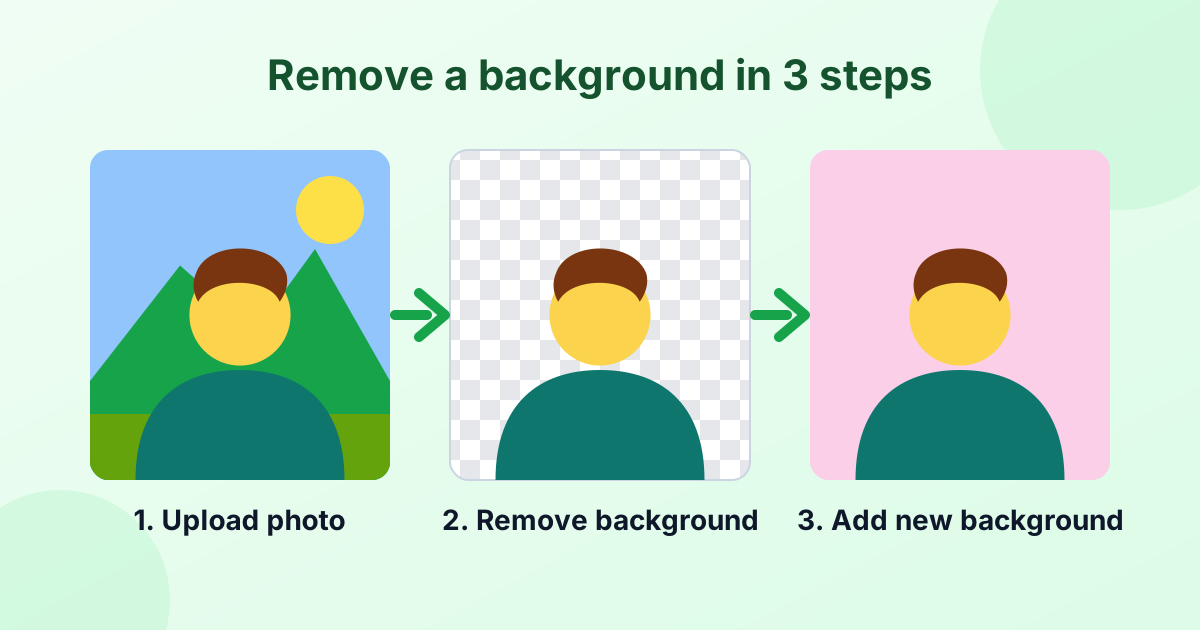
Once your subject has no background, giving it a new one is simple:
- Solid color: Click an empty part of the page, then click the color tile in the toolbar.
- Photo background: Drag a photo from the Elements or Photos tab onto the page and right-click > Set image as background.
- Gradient: Search "gradient" in Elements and stretch one to fill the page, then send it to the back.
Prefer to do it before Canva? Our change background color tool swaps in white, black or any color in one step.
How to Make a Transparent PNG in Canva
Downloading with a transparent background is also a Pro feature:
- Click Share > Download.
- Choose PNG as the file type.
- Tick Transparent background.
- Click Download.
Free users can't tick that box. The workaround: make the transparent PNG with our background remover and use it directly, without exporting from Canva.
Canva Pro vs Our Free Tool
| Canva Pro BG Remover | Free online remover | |
|---|---|---|
| Cost | Paid subscription | Free |
| Works inside designs | Yes | Upload the PNG to Canva |
| Edge touch-up brushes | Yes | Use our color tool or another editor |
| Photo uploaded to a server | Yes | No, runs in your browser |
| Transparent PNG download | Pro only | Free |
Frequently Asked Questions
Is Canva's background remover free?
No. It's a Canva Pro feature. Free users can remove backgrounds with a free online tool and upload the PNG to Canva.
Why can't I remove the background in Canva?
You may be on a free account, or you may have selected an element instead of a photo. The BG Remover only works on uploaded photos and Canva photos.
How do I erase part of an image in Canva?
After using BG Remover, use the Erase brush to remove extra areas and Restore to bring parts back.
Can I remove a background in Canva on my phone?
Yes, with Canva Pro. Tap the photo, tap Edit, then BG Remover.
How do I save a Canva design with no background?
Download as PNG and tick Transparent background. This option requires Canva Pro.