Lossy vs Lossless Compression (Explained Simply)
Every image you save is compressed in one of two ways: lossy or lossless. Knowing the difference helps you pick the right format and settings every time.
The Short Answer
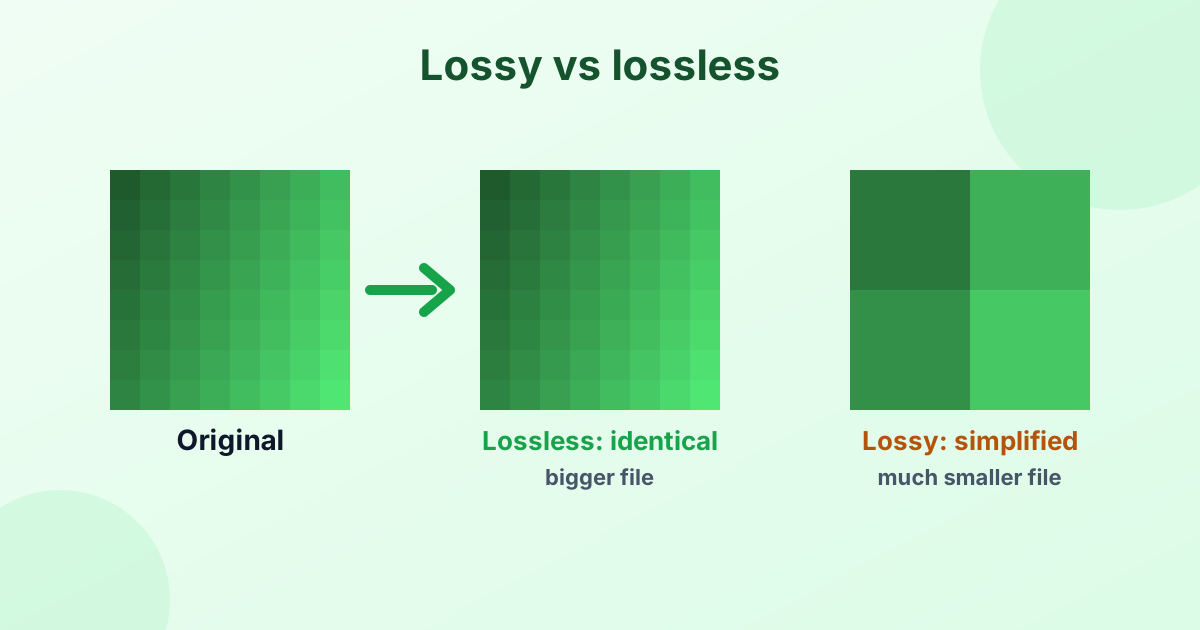
- Lossy compression makes files much smaller by throwing away some detail. You can't get that detail back.
- Lossless compression makes files smaller without losing anything. The original can be rebuilt perfectly.
Lossy is like summarizing a book. Lossless is like zipping it.
What Is Lossless Compression?
Lossless compression finds patterns and stores them more efficiently. For example, instead of saving "white, white, white, white" for 1,000 pixels, it saves "1,000 white pixels". When you open the file, every pixel comes back exactly as it was.
Lossless image formats: PNG, GIF, BMP (no compression at all), TIFF, lossless WebP, and RAW.
Good for:
- Logos, icons and graphics with flat colors
- Screenshots and images with text
- Images you'll edit and re-save many times
- Medical, scientific and archival images
What Is Lossy Compression?
Lossy compression removes information that people are least likely to notice. For photos, it smooths tiny color changes and fine textures that the eye barely sees. The result can be 5 to 20 times smaller than lossless.
Lossy image formats: JPG/JPEG, most WebP, AVIF and HEIC.
Good for:
- Photos for websites, email and social media
- Uploads with file size limits
- Saving storage on phones and in the cloud
Lossy vs Lossless at a Glance
| Lossy | Lossless | |
|---|---|---|
| File size | Much smaller | Larger |
| Quality | Slightly reduced (often invisible) | Perfect copy |
| Can you get the original back? | No | Yes |
| Re-saving many times | Quality drops each time | No change |
| Best for | Photos | Graphics, text, editing, archives |
| Image formats | JPG, WebP, AVIF, HEIC | PNG, GIF, BMP, TIFF, RAW |
Why Does Lossy Compression Create Blocks?
JPG splits an image into small 8 × 8 pixel squares and simplifies each one. At high quality, you'll never see them. At very low quality, the squares become visible as blocky artifacts, and colors smear around edges.
Want to see it in action? Our low quality image maker pushes JPEG compression to the extreme on purpose.
How to Choose the Right Compression
- Is it a photo? Use lossy (JPG or WebP) at 75–85% quality.
- Does it have text, sharp lines or transparency? Use lossless (PNG).
- Will you keep editing it? Save a lossless master copy, then export lossy versions to share.
- Is it for a website? WebP covers both: lossy for photos, lossless for graphics.
Compress Images the Smart Way
- Compress JPEG: lossy compression with a quality slider
- Compress PNG: smart color reduction that keeps transparency
- Compress to KB: hit an exact file size
- Image compressor: all formats in one place
For a complete walkthrough, read How to Reduce Image File Size.
Lossy and Lossless Beyond Images
The same idea applies to other files:
- Audio: MP3 and AAC are lossy. FLAC and WAV are lossless.
- Video: Almost all video (MP4, WebM) is lossy.
- Documents and data: ZIP and other archives are always lossless. You can't lose text or numbers.
Frequently Asked Questions
What is lossless compression?
Compression that reduces file size without losing any data. The original can be restored exactly.
What is lossy compression?
Compression that removes some detail to make files much smaller. The removed detail is gone for good.
Is PNG lossless?
Yes. PNG uses lossless compression.
Is JPG lossy?
Yes. JPG always uses lossy compression, even at 100% quality.
Which is better, lossy or lossless?
Neither is better overall. Lossy is best for photos and sharing. Lossless is best for graphics, text, editing and archiving.
Does converting a JPG to PNG make it lossless?
It stops further loss, but it can't bring back detail the JPG already threw away.
Helpful Guides
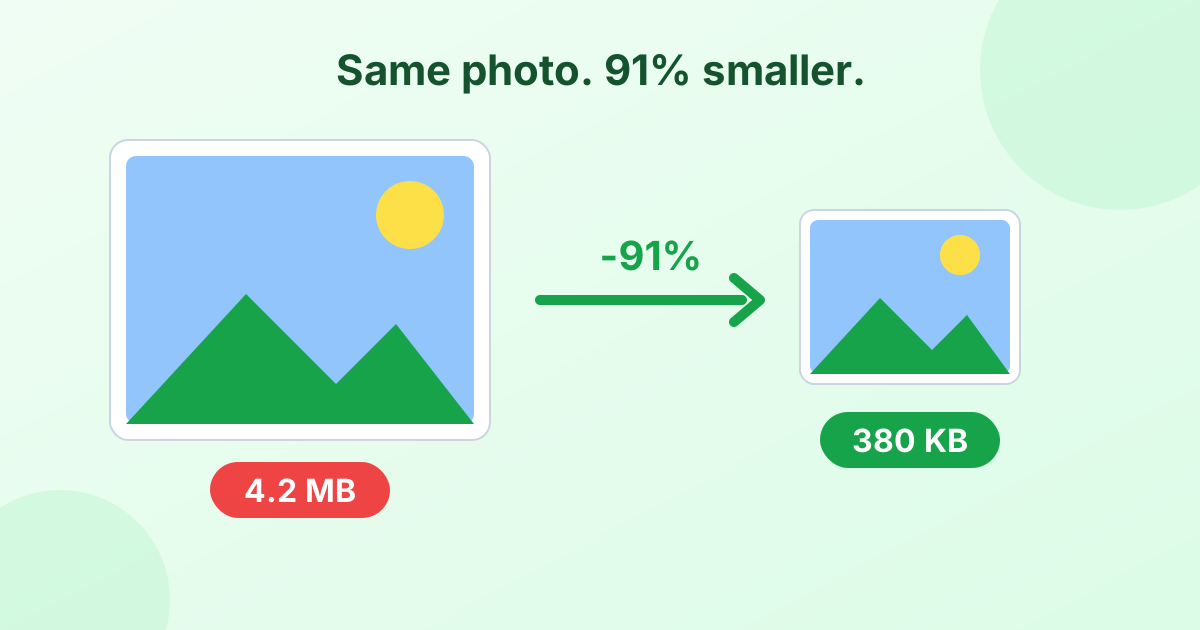 How to Reduce Image File Size Without Losing QualityFive simple ways to make photos smaller on any device.
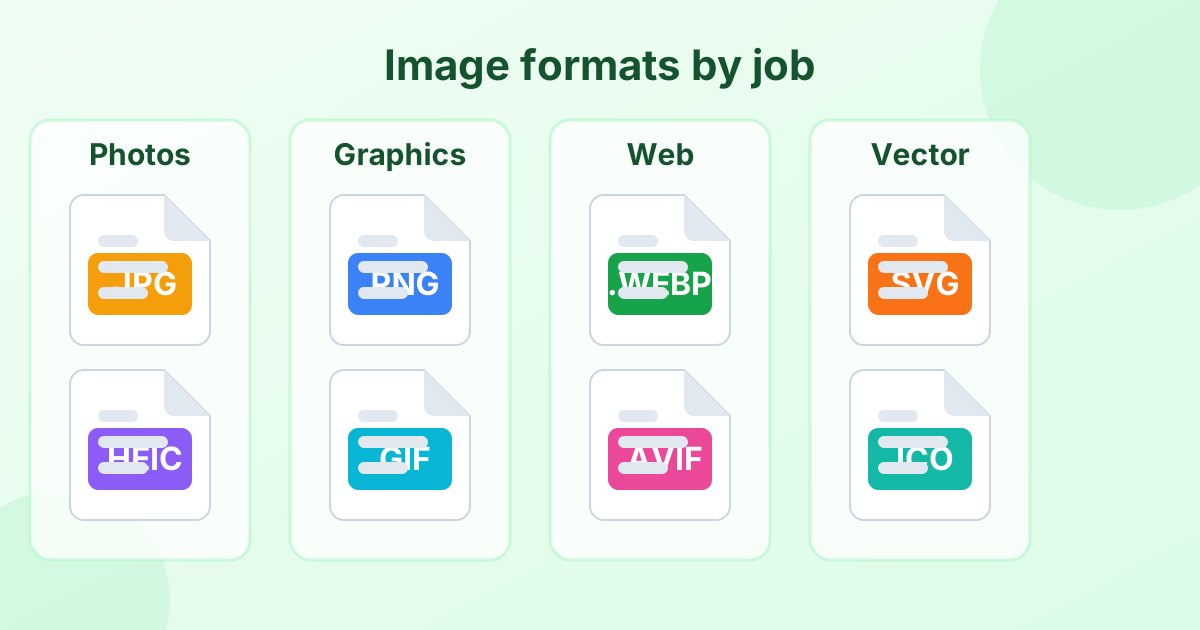 Image File Formats Explained (A Simple Guide)Every common image format in one place, and when to use each.
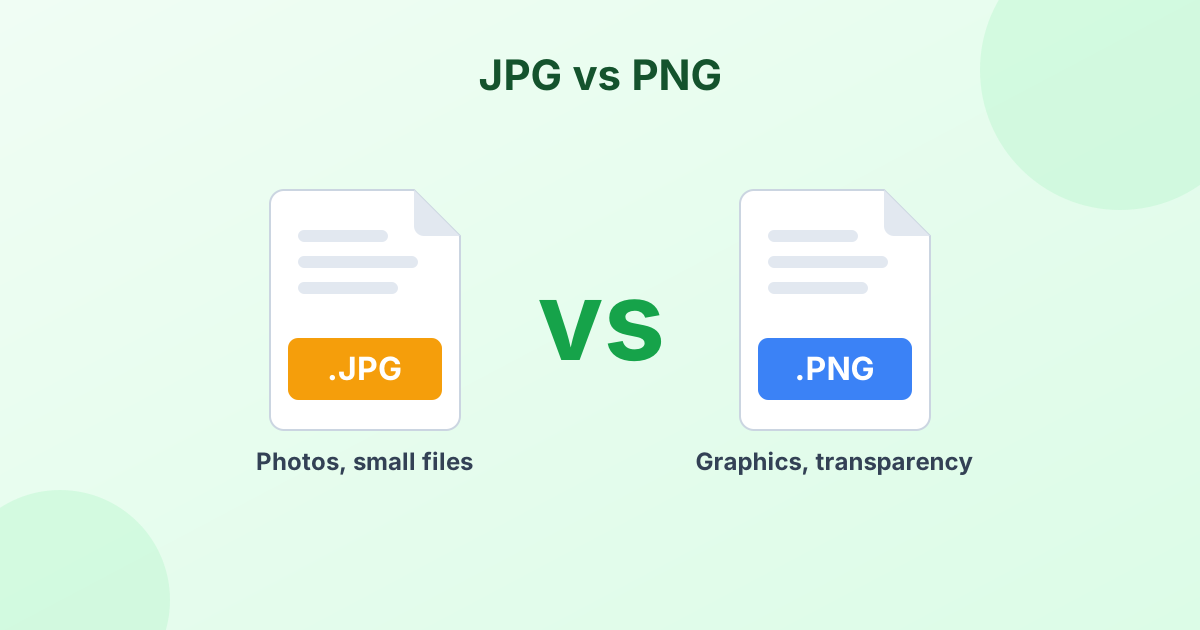 JPG vs PNG: Which Format Should You Use?The real difference between JPG and PNG, and when to pick each one.