How to Fix Pixelated Photos
Blocky squares and jagged edges can ruin a good photo. Here's why pictures get pixelated, how to fix them, and how to stop it happening again.
Why Do Photos Look Pixelated?
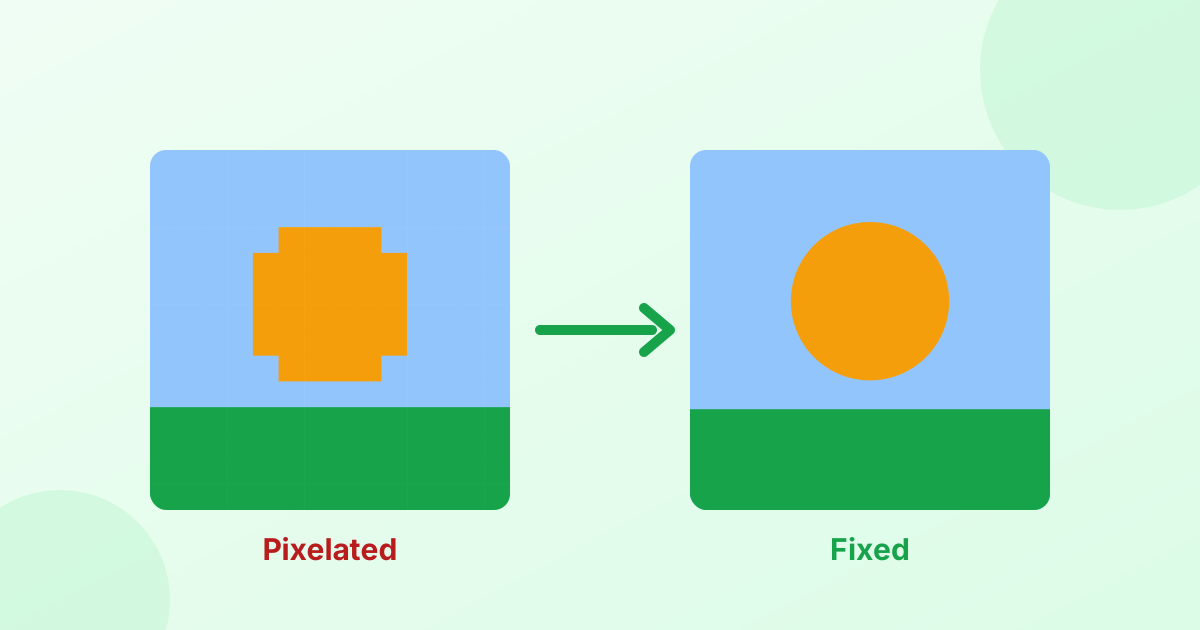
A digital photo is a grid of tiny squares called pixels. You normally can't see them. A photo looks pixelated when those squares become big enough to notice. That happens for a few reasons:
- The image is too small for how it's shown. A 400-pixel-wide photo stretched across a 1920-pixel screen makes each pixel nearly five times bigger.
- Heavy compression. Saving a JPG at very low quality, or sending it through chat apps, creates blocky 8 × 8 squares.
- Repeated saving and sharing. Every time a photo is saved or re-uploaded, it can get compressed again.
- Zooming in too far. Digital zoom on phones just crops and stretches pixels.
- Screenshots of screenshots. Each round loses detail.
How to Fix a Pixelated Image
1. Use an AI upscaler (best results)
AI upscalers rebuild the photo at a larger size and predict the missing detail. Edges get cleaner and blocky squares melt into smooth lines.
- Open our free AI image upscaler.
- Choose 2× (or 4× for very small images).
- Keep the AI method selected.
- Compare the result and download it as PNG.
This works best on images that are small but not heavily damaged.
2. Smooth and sharpen
For mildly blocky JPGs, a light clean-up helps:
- Open the photo in our photo enhancer.
- Raise Reduce noise / grain to 30–50. This softens the block edges.
- Add a little Sharpen (20–30) to bring back crisp detail.
3. Find a better original
This is often the real fix. Look for:
- The original photo on the phone or camera that took it
- The "original quality" download option in cloud photo apps
- The full-size image on the website, not a thumbnail
- A version that wasn't shared through a chat app
How to Unpixelate a Censored Image
If someone deliberately pixelated part of a photo (like a face or text), the hidden detail is gone. No tool can truly reverse it. "Depixelator" apps can only guess, and their guesses are often wrong. That's exactly why pixelation is used for privacy.
How to Stop Photos From Getting Pixelated
- Don't enlarge small images with normal resizing. Use an AI upscaler.
- Export at the right size. Resize to the exact size you need with our image resizer.
- Use good quality settings. Save JPGs at 80% quality or higher.
- Use PNG for graphics, screenshots and text. It doesn't create compression blocks.
- Turn on high-quality uploads in apps like Instagram and WhatsApp.
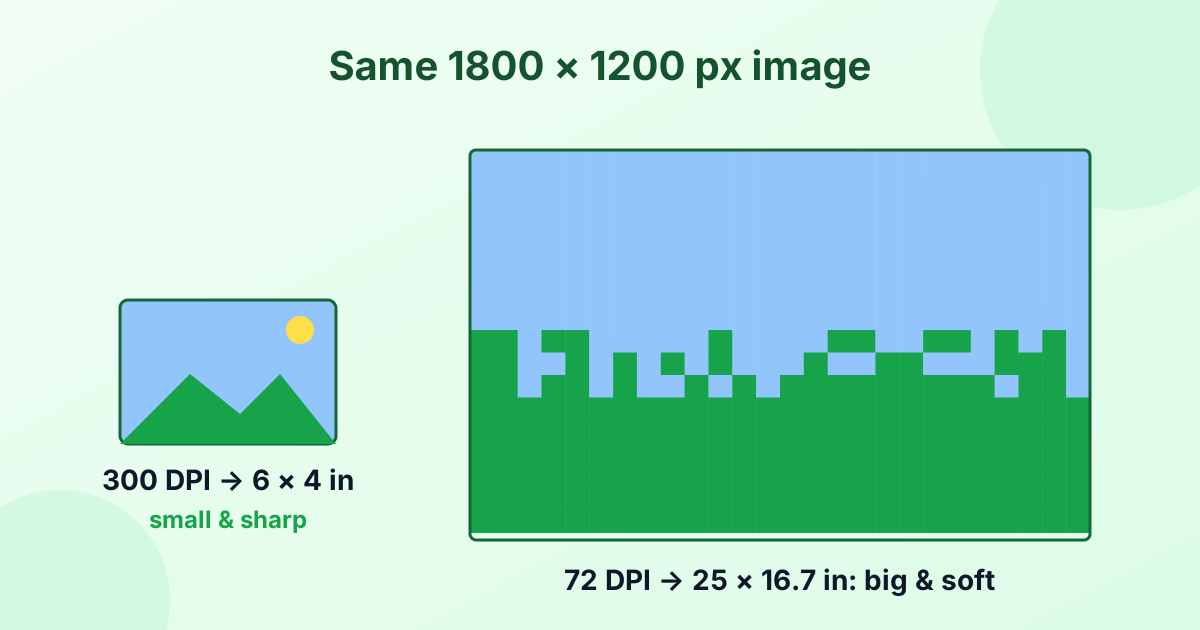
- Print at 300 DPI. Check that your image has enough pixels for the print size. See What is DPI?
Pixelated vs Blurry vs Grainy
| Problem | What you see | Best fix |
|---|---|---|
| Pixelated | Blocky squares, jagged edges | AI upscaling |
| Blurry | Soft, out-of-focus details | Sharpening, AI upscaling |
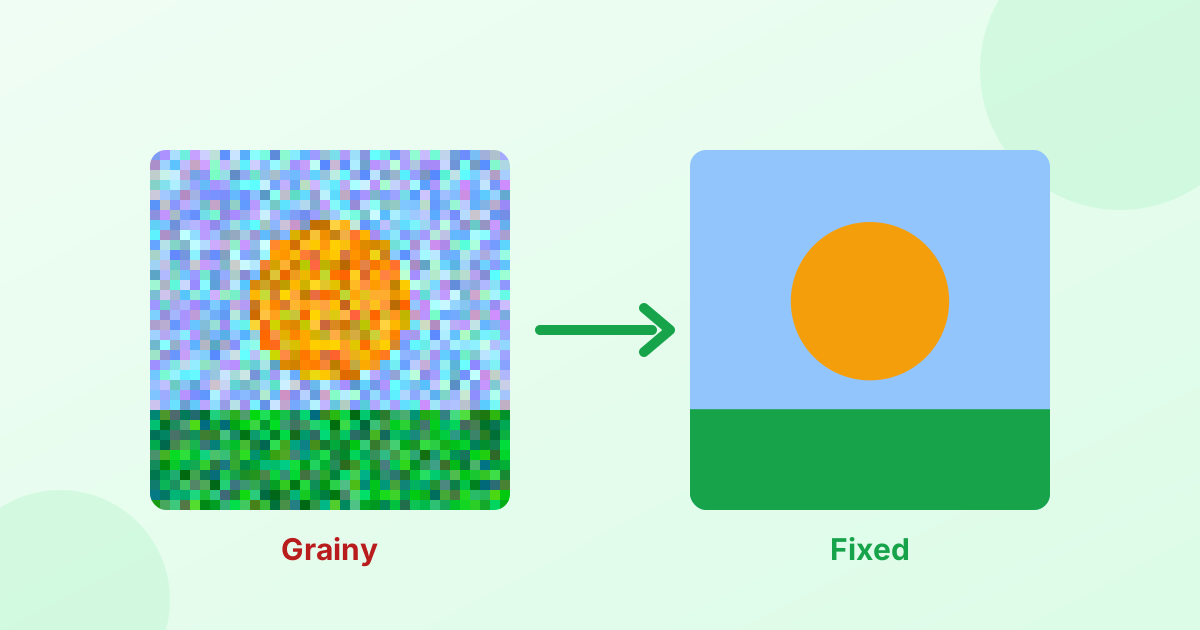
| Grainy / noisy | Speckles, especially in dark areas | Noise reduction (see guide) |
Frequently Asked Questions
How do I fix a pixelated picture for free?
Use a free AI image upscaler. It enlarges the image and predicts sharper detail, which smooths out pixelation.
Can you unpixelate an image?
You can improve low-resolution and compressed images. You can't recover detail from an image that was deliberately pixelated to hide something.
Why do my photos look pixelated on Instagram?
Instagram compresses uploads. Upload at 1080 px wide, use the right aspect ratio, and turn on high-quality uploads in settings.
Does converting to PNG fix pixelation?
No. PNG prevents new compression damage, but it can't remove existing blocks.
How do I make a low-resolution image high resolution?
Upscale it with AI, then save it as PNG. For printing, set the DPI to 300 afterward.